1. Install
| Where | Requirements | |
|---|---|---|
| iPhone / iPad | App Store | iOS 17.0 or later |
| Android | Google Play (from the “Zen Article” developer page) | Android 8.0 or later |
| Mac | A .dmg straight from this site | macOS 13 or later, notarised by Apple |
| Browser | Just open www.ura-logi.com/anchor/app/ (nothing to install) | Your study history stays in that browser |
The Mac build is distributed directly rather than through the App Store. The download page lists the version, size and SHA-256, so you can check that what you downloaded is what was published. There are no Windows or Linux builds.
2. Try the bundled samples
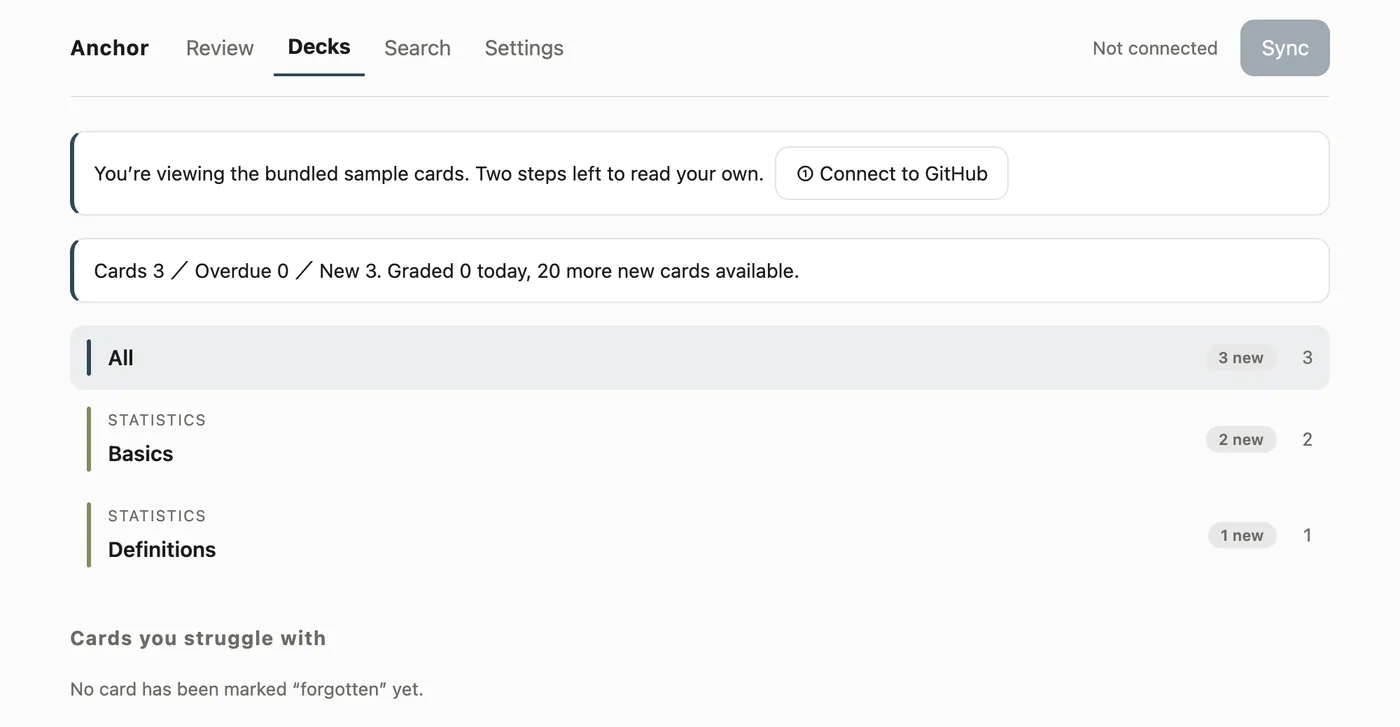
Three sample cards ship with the app. Without connecting anything, you can see quizzing, reference expansion and grading end to end. They are cards about basic statistics, written for this purpose.
3. Read the demo (no account needed)
“Read the demo” in settings loads a public demo repository without authenticating. With no account and no token, you can watch the whole path — connect, fetch the tree, fetch the cards, quiz — exactly as it runs for real.
While the demo is loaded, a banner at the top of the list says so.
Grades on the demo and the samples are never sent to your repository. They are written to a separate place on the device and discarded the moment you pick a repository of your own (the app says when it discards them). A grade for a card that does not exist in your vault would be stuck in an append-only log forever.
4. Choose where your cards live
There are two places your cards can live.
| Anchor Cloud (default) | GitHub | |
|---|---|---|
| Best for | Getting started. Most people | People who want to own the files, or already use GitHub |
| You need | Nothing (no sign-up, no email address) | A GitHub account and repository (free is enough) |
| Connecting | Enter an 8-character code | Approve in the browser and pick a repository |
The card format, the review log and the quizzing are the same either way. What Anchor Cloud holds is set out in privacy and safety.
5. Start with Anchor Cloud
Anchor Cloud needs iPhone / iPad 1.7 (22), Android 0.3.1 or Mac 0.1.9 or later. The phone updates reach the stores after review. Until yours arrives, start in the web app — you can connect your phone to the same vault later.
The shortest path is to give the one line on the Anchor page to the AI agent you use. It reads https://www.ura-logi.com/anchor/start.txt (instructions written for AI agents), asks what you want to learn, and writes the cards.
If your AI can call the API
If your agent can make network requests, it does most of the work.
- The AI creates a vault and writes the cards into it
- The AI gives you an 8-character pairing code (
XXXX-XXXX) - In the app, go to Settings → Anchor Cloud → Connect with code and enter it. You are connected
- Sync, pick a deck, and reviewing starts
The code is valid for 15 minutes and works once. If it expires, use Create one and copy the line for your AI in the app to create a new vault, give that line to your AI, and have it write the cards again.
If your AI cannot call the API (a chat window)
A chat AI without network access works too; you import the cards by pasting.
- In the app, Settings → Anchor Cloud → Create one and copy the line for your AI creates a vault (the app is connected from this point)
- Give the copied line to your AI. It writes all the cards in one reply
- Copy the whole reply and paste it into Paste your AI’s reply to import cards, then import
- If some cards are rejected, the app can copy the reasons for you to send back to the AI. Have it fix them and paste again
You can fix cards by pasting, too (iPhone 1.7.1, Android 0.3.2, Mac 0.1.11 and the web app). Ask your AI to write the corrected card again with the same id and the same deck, and paste it the same way. Confirm the overwrite; the review history follows the id, so it is kept. Pasting cannot delete a card or move it to another deck.
The line contains your vault’s key. It is meant for your AI — do not share it with people.
Add another device
On a connected device, press Add another device to get a code. Enter it in Connect with code on the new device, and it reads the same cards and review log.
6. If you want to keep your cards on GitHub
If you would rather own your cards as files in your own repository, you can keep them on GitHub instead of Anchor Cloud. Tell your AI agent to “put them on GitHub” and it walks you through creating the repository and writing the cards.
Connect GitHub
Connect → approve in the browser → pick from the repositories you can see. There is nothing to type.
- “Connect GitHub” from settings (or the top of the list)
- An eight-character code appears. Enter it in the browser that opens and approve
- The app receives the token by itself
Underneath this is GitHub’s device flow, which needs no server-side secret — so nothing sits between the app and GitHub.
It is fine to leave the app mid-approval. The code is valid for 15 minutes and is kept on the device, so the app picks the exchange back up when you return (on Mac, even if you close the window, it resumes on the next launch).
Choose which repositories it can see
Connecting alone does not make any repository visible. Anchor installs as a GitHub App, so only the repositories you decide to show it are visible.
If the repository list comes back empty, use “Choose which repositories to share” in settings to open GitHub’s install screen, pick your repositories, and load the list again.
The permission it needs is Contents: read and write (reading cards, writing back the review log). For the Changes tab, add Pull requests: read-only.
Pasting a token still works
For self-builds and for organisations that block the login flow, you can paste a fine-grained PAT instead. A PAT scoped to that one repository with Contents: Read and write is the recommended shape. Either way the token is stored only in the device keychain — never synced to iCloud, never written to the repository.
Add a card
Put one Markdown file in the repository and it becomes quizzable (the format is the same on Anchor Cloud). The shortest possible example:
---
id: stat-sd-reading
deck: Statistics/Basics
---

# What standard deviation tells you

Two datasets have the same mean. Which single number says which one is more spread out?

<!-- back -->

Square each value's distance from the mean and average it (the variance), then take the square root. It carries the same unit as the data, so it reads as "typically this far from the mean".- A file cannot sit at the root of the vault (it must be inside at least one directory)
- Never change an
id. It is the only link to your history - The whole format is in the card format
- To have an agent write them, see having your cards written
7. Sync
Use the sync button on the study tab, or pull to refresh. It reads cards and three files under data/, and writes back only your review log and the weak-card snapshot — the same on Anchor Cloud and GitHub (sync).
When it finishes, the decks list shows “due n / new n” per deck. Pick one and reviewing starts (reviewing).